
html+css+js
编者的话:记录自己的学习历程,并尽可能的做一份能够完整实现和学习的教程。
html 标签一码解
<!DOCTYPE html>
<html lang="en">
  <head>
    <!--
      <head> 标签包含网页的元数据,如字符集、标题、样式表等内容
      - charset: 指定文档的字符集,通常为UTF-8
    -->
    <meta charset="UTF-8">
    <title>My Webpage</title>
  </head>
  <body>
    <!--
      <body> 标签用于包含网页的可视内容,所有显示在浏览器中的内容都在这个标签中
    -->

    <!--
      <h1> 至 <h6> 标签用于定义标题,<h1> 为最大标题,<h6> 为最小标题
    -->
    <h1>This is a level 1 heading</h1>
    <h2>This is a level 2 heading</h2>
    <h3>This is a level 3 heading</h3>

    <!--
      <p> 标签用于定义一个段落
      - style: 设置内联样式
      - class: 为元素指定类名,用于CSS样式
      - id: 为元素指定唯一标识符
    -->
    <p style="color: blue;" class="paragraph" id="first-paragraph">
      This is a paragraph of text in HTML.
    </p>

    <!--
      <a> 标签用于创建超链接
      - href: 指定链接目标URL(必需)
      - target: 定义链接的打开方式,例如 '_blank' 在新标签页打开
      - title: 鼠标悬停时显示的文本
      - rel: 定义与目标文档的关系
    -->
    <a href="https://www.example.com" target="_blank" title="Visit Example Website" rel="noopener noreferrer">
      Click here to visit Example
    </a>

    <!--
      <img> 标签用于嵌入图像
      - src: 指定图像的路径(必需)
      - alt: 图像的替代文字,当图像无法显示时显示此文字(必需)
      - width 和 height: 设置图像的宽度和高度(单位为像素)
      - loading: 定义图像的加载方式,lazy 表示懒加载,eager 表示立即加载
    -->
    <img src="image.jpg" alt="A description of the image" width="300" height="200" title="Image Title" loading="lazy">

    <!--
      <ul> 标签用于定义无序列表
      <li> 标签定义列表项
    -->
    <ul>
      <li>Item 1</li>
      <li>Item 2</li>
      <li>Item 3</li>
    </ul>

    <!--
      <ol> 标签用于定义有序列表
      - type: 定义列表项的编号样式,如 '1' 表示数字,'A' 表示大写字母
      - start: 定义列表开始的数字
    -->
    <ol type="A" start="3">
      <li>First item</li>
      <li>Second item</li>
      <li>Third item</li>
    </ol>

    <!--
      <div> 标签用于定义一个区块或容器元素
      - class: 为元素指定类名
      - id: 为元素指定唯一标识符
      - style: 应用内联样式
      - data-*: 自定义属性,用于存储额外的信息
    -->
    <div class="container" id="main-container" style="background-color: lightgray;">
      <h2>Header inside a div</h2>
      <p>This content is inside a div element.</p>
    </div>

    <!--
      <span> 标签用于定义行内元素,通常用于格式化文本或控制样式
      - style: 应用内联样式
      - class: 为元素指定类名
    -->
    <p>This is a <span style="color: red;">red</span> word in a sentence.</p>

    <!--
      <form> 标签用于定义表单
      - action: 表单提交的目标URL
      - method: 表单数据的提交方式,常见的有 'GET' 和 'POST'
      - enctype: 表单数据的编码类型,multipart/form-data 用于上传文件
      - target: 指定表单提交的目标窗口或框架
    -->
    <form action="/submit" method="POST" target="_blank">
      <label for="name">Name:</label>
      <input type="text" id="name" name="name">
      <button type="submit">Submit</button>
    </form>

    <!--
      <input> 标签用于接受用户输入,类型不同可以创建不同类型的输入框
      - type: 定义输入框的类型,常见值有 'text', 'password', 'submit' 等
      - placeholder: 输入框的占位符文本
      - required: 定义该输入框为必填项
    -->
    <form>
      <input type="text" placeholder="Enter your name" required>
      <input type="submit" value="Submit">
    </form>

    <!--
      <video> 标签用于嵌入视频文件
      - src: 视频文件路径
      - controls: 启用视频控件(播放、暂停、音量控制等)
      - autoplay: 视频加载后自动播放
      - loop: 视频播放完后自动循环
      - muted: 默认静音视频
    -->
    <video src="movie.mp4" controls autoplay loop muted width="600">
      Your browser does not support the video tag.
    </video>

    <!--
      <table> 标签用于定义表格,<tr> 定义表格行,<td> 定义表格单元格
      - border: 定义表格的边框宽度
      - colspan: 单元格跨越的列数
      - rowspan: 单元格跨越的行数
    -->
    <table border="1">
      <tr>
        <td colspan="2">Merged cell</td>
      </tr>
      <tr>
        <td>Row 1, Column 1</td>
        <td>Row 1, Column 2</td>
      </tr>
      <tr>
        <td>Row 2, Column 1</td>
        <td>Row 2, Column 2</td>
      </tr>
    </table>
  </body>
</html>
以下是 css 常用样式
- 行内样式 写在标签的style属性中,一般配合js使用
- 内部样式 写在style标签中,可以写在任何位置,一般head标签中
- 外部样式 写在一个单独的.css文件中,通过Link标签引入
优先级 选择器的优先级 ID选择器 > 类 ** 选择器 > 标签选择器 当多个选择器作用在同一个标签上的时候,如果属性冲突,看优先级;如果不冲突,样式叠加生效。
样式表的优先级 行内样式 > 内部样式 >外部样式
同样,三个样式表中都有内容作用在同一个html标签的时候,如果属性冲突,看优先级;如果不冲突, 样式叠加生效
color:字体颜色 跟颜色相关的取值分3种:
颜色的单词 red blue… rgb(红,绿,蓝)三色的取值范围是0-255 rgb(255,0,0) rgba(红,绿,蓝,透明度),透明度取值:0-1 0 全透明 1-不透明 0.5 半透明rgba(255,0,0,0.4) #值1值2值3 :值的范式是00-FF 十六进制数字组成的 例如:#FF0000 width height:宽高 PS:只有块状元素可以设置宽高,行级元素设置不生效
取值方式有2种:
数值 绝对数字 单位是像素PX
百分比 **
:占据父元素的比例
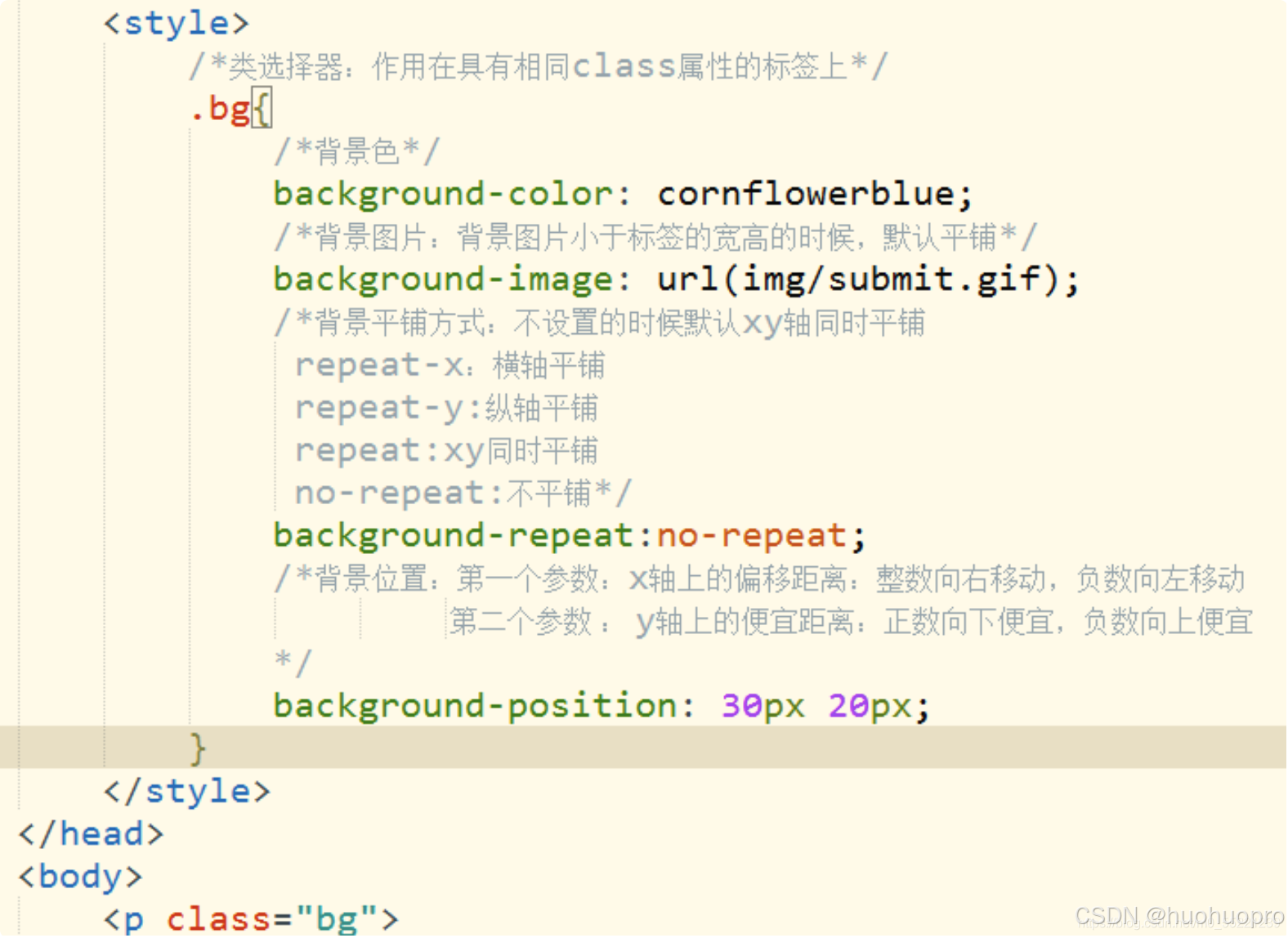
背景样式
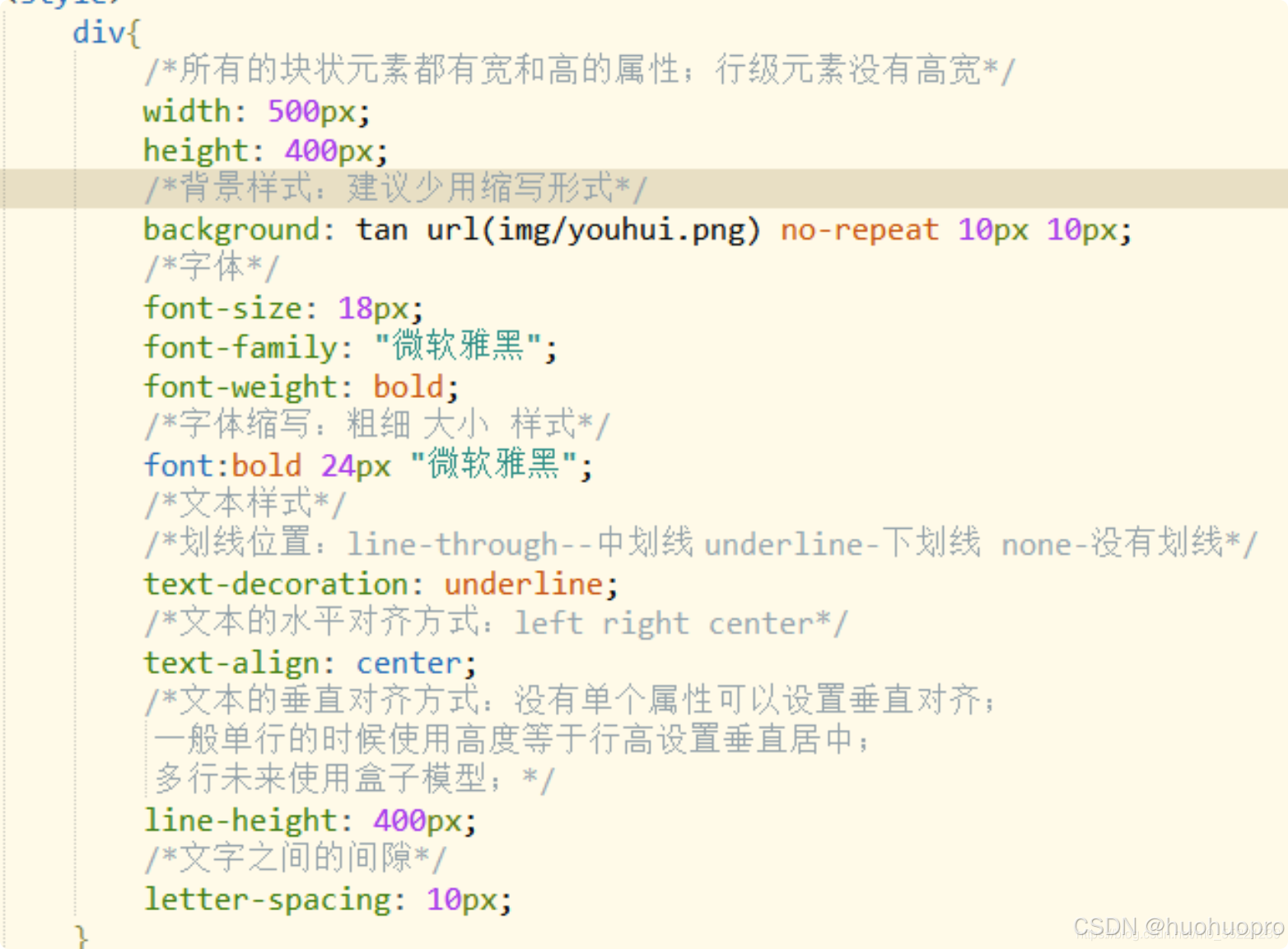
文本样式
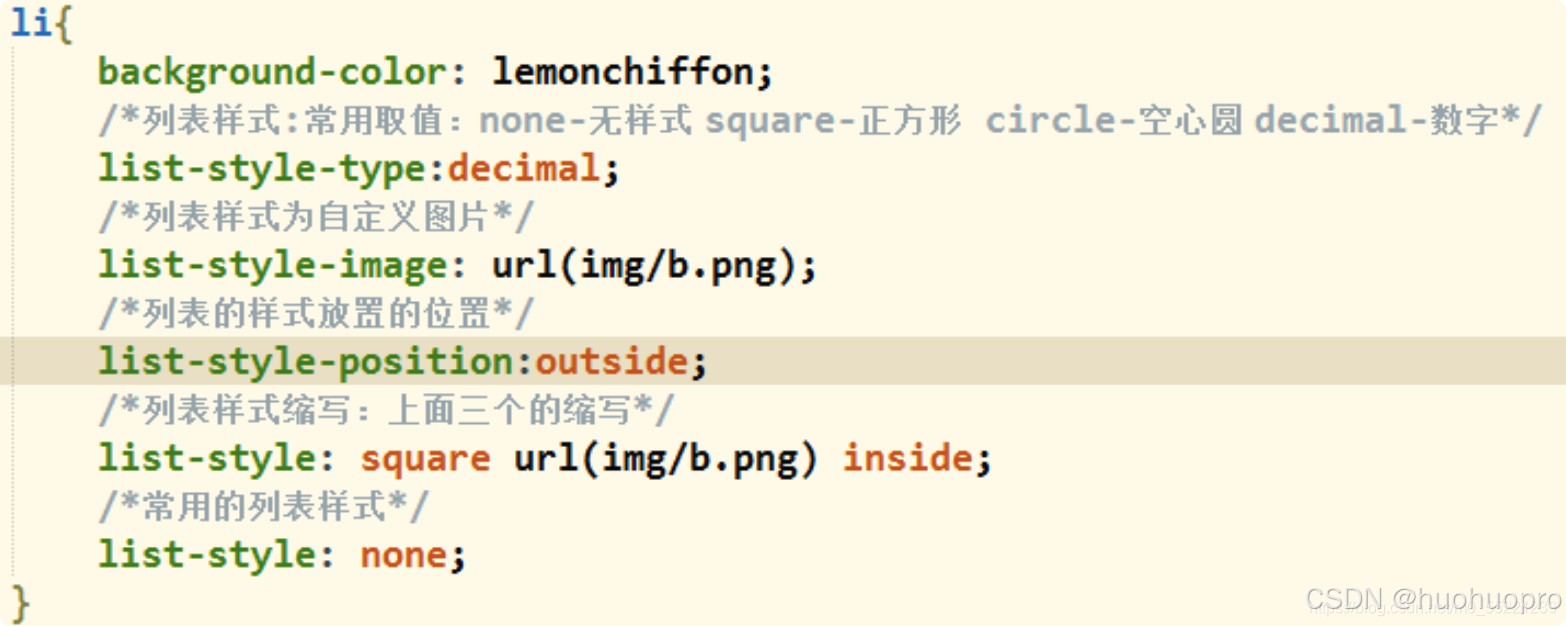
列表样式
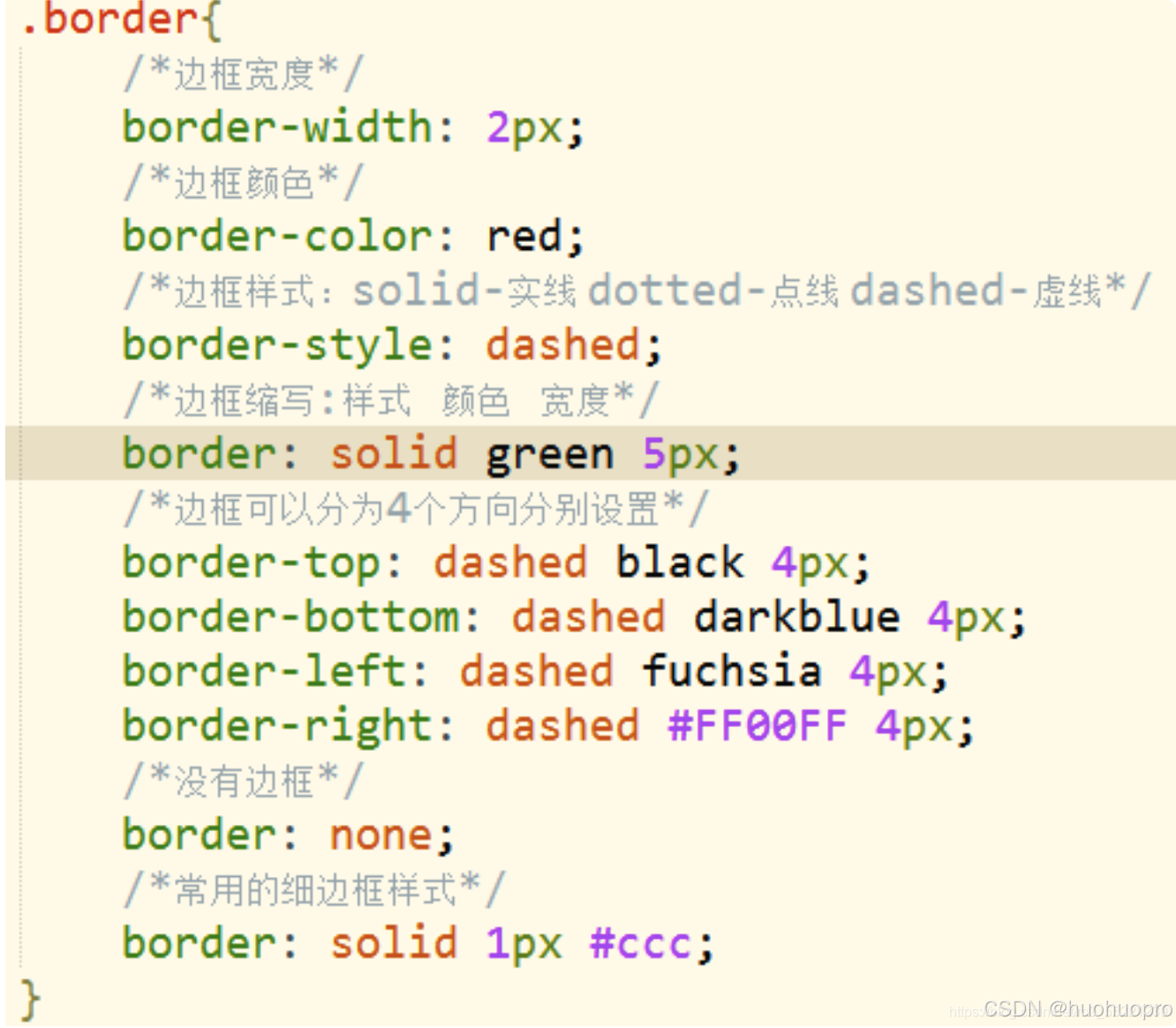
边框样式
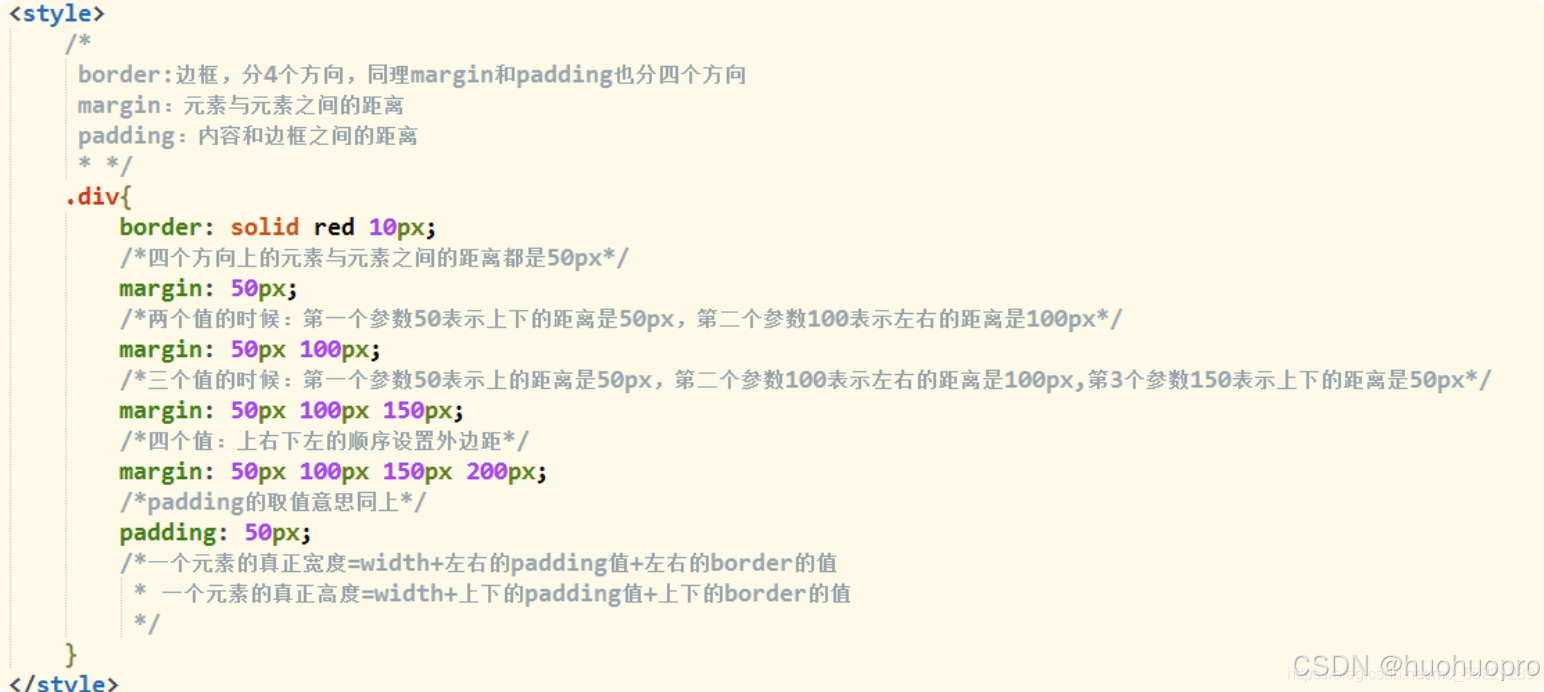
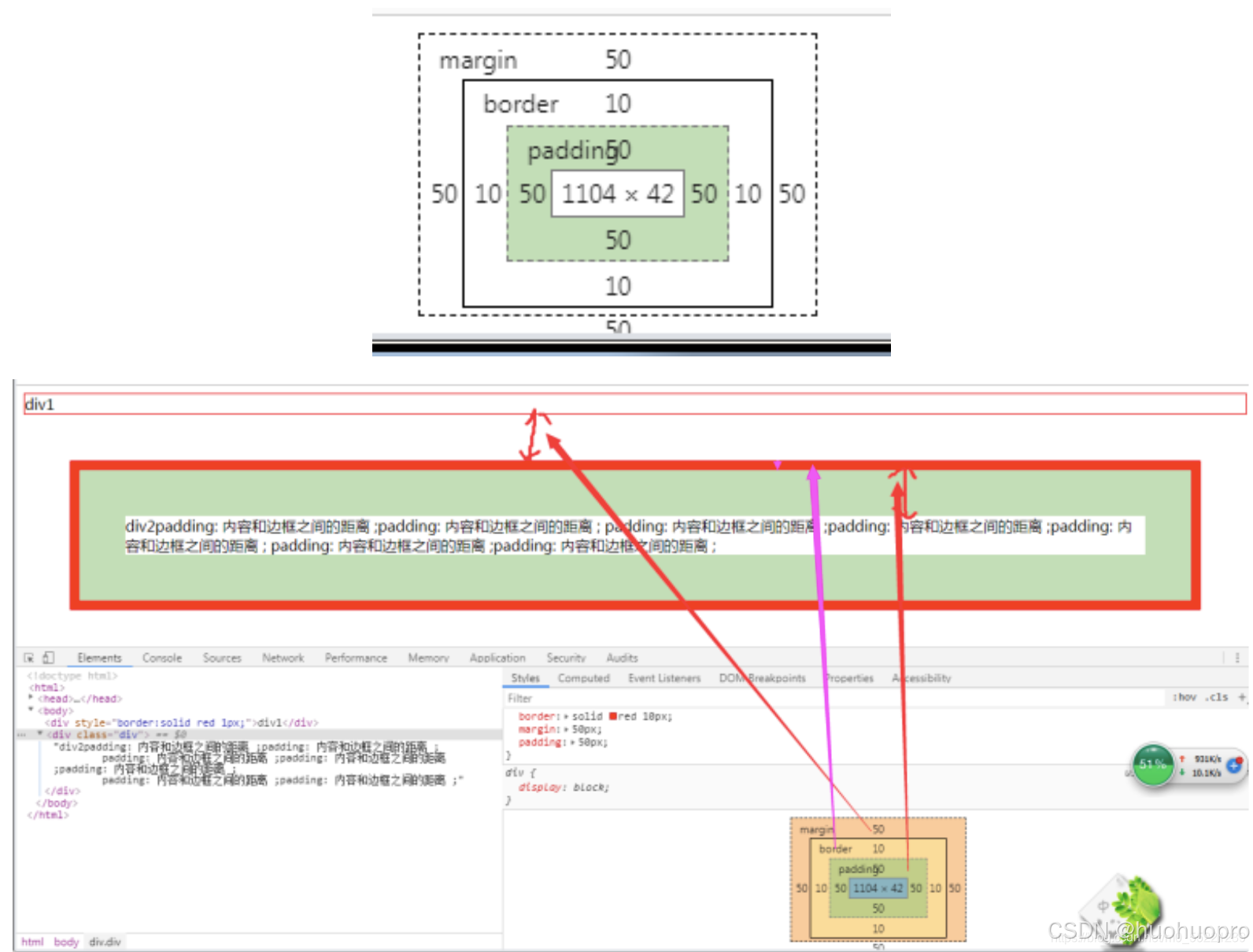
div样式
常用示例/浮动
 /* 通用样式:去除页面元素的默认边距和填充,使页面布局更加一致 */
        * {
            margin: 0;
            padding: 0;
            /* 让元素的宽度和高度包括内边距和边框 */
        }

        .leftfix {
            float: left; /* 设定浮动,可以使一个盒子中的多个盒子并行排列 */
        }

        .rightfix {
            float: right;
        }

        .clearfix::after {
            content: '';
            display: block;
            clear: both;
        }

        /* body样式:设置背景颜色和字体 */
        body {
            background-color: #f0f0f0;
            /* 页面背景颜色 */
            font-family: Arial, sans-serif;
            /* 设置字体 */
        }

        /* 容器样式:限制最大宽度,居中对齐内容 */
        .container {
            max-width: 960px;
            /* 最大宽度960px */
            margin: 0 auto;
            /* 水平居中 */
            padding: 20px;
            /* 上下内边距 */
            text-align: center;
            /* 内容居中 */
        }

        /* 头部布局:使用flex布局,设置元素间距 */
        .header {
            display: flex;
            /* 使用flexbox布局 */
            margin-bottom: 10px;
            /* 底部外边距 */
        }

        /* logo样式:设置logo区域大小 */
        .logo {
            width: 200px;
            /* 设置宽度 */
            height: 80px;
            /* 设置高度 */
            margin-right: 10px;
            /* 右侧外边距 */
            background: #ccc;
            /* 背景为白色 */
            line-height: 80px;
            /* 行高为80px */
        }

        /* banner1样式:设置banner1区域大小 */
        .banner1 {
            width: 540px;
            /* 设置宽度 */
            height: 80px;
            /* 设置高度 */
            margin: 0 10px;
            /* 右侧外边距 */
            background: #ccc;
            /* 背景为白色 */
            line-height: 80px;
            /* 行高为80px */
        }

        /* banner2样式:设置banner2区域大小 */
        .banner2 {
            width: 200px;
            /* 设置宽度 */
            height: 80px;
            /* 设置高度 */
            background: #ccc;
            /* 背景为白色 */
            line-height: 80px;
            /* 行高为80px */
        }

        /* 菜单样式:设置菜单的区域 */
        .menu {
            height: 30px;

            margin: 0 auto;
            /* 水平居中 */
            background: #ccc;
            /* 背景为白色 */
            line-height: 30px;

            margin-top: 10px;
            /* 上边距为10px */
        }

        .content {
            margin-top: 10px;
            /* 上边距为10px */
        }

        .item1,
        .item2 {
            width: 368px;
            /* 设置宽度 */
            height: 198px;
            line-height: 198px;
            border: 1px solid black;
            margin-right: 10px;
        }

        .item3,
        .item4,
        .item5,
        .item6 {
            width: 178px;
            height: 198px;
            line-height: 198px;
            border: 1px solid black;
            margin-right: 10px;
        }

        .item7,
        .item8,
        .item9 {
            width: 198px;
            height: 128px;
            line-height: 128px;
            border: 1px solid black;

        }

        .item8 {
            margin: 10px 0;

        }

        .bottom {
            margin-top: 10px;
        }

        .footer {
            height: 60px;
            /* 设置菜单的高度 */
            margin: 0 auto;
            /* 水平居中 */
            background: #ccc;
            /* 背景为白色 */
            line-height: 60px;
            margin-top: 10px;
            /* 上边距为10px */
        }
样式配套页面
<!DOCTYPE html>
<html lang="zh-CN">

<head>
    <meta charset="UTF-8">
    <title>网页布局设计</title>
    <link rel="stylesheet" type="text/css" href="实验三-1.css">
</head>

<body>
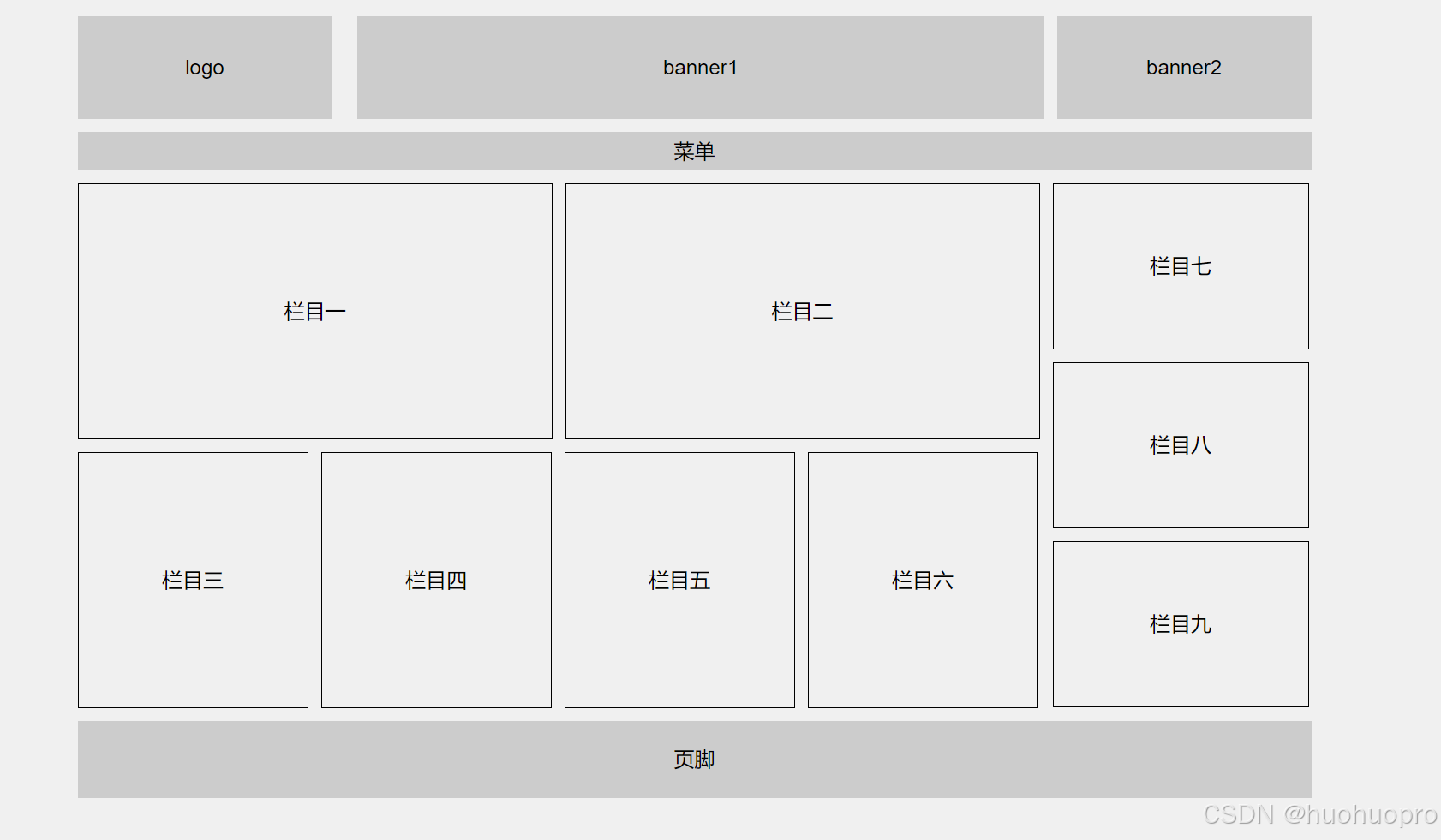
    <div class="container">
        <!-- 头部部分 -->
        <div class="header">
            <div class="logo leftfix">logo</div> <!-- logo区域 -->
            <div class="banner1 leftfix">banner1</div> <!-- 第一个横幅 -->
            <div class="banner2 leftfix">banner2</div> <!-- 第二个横幅 -->
        </div>
        <!-- 菜单部分 -->
        <div class="menu">菜单</div>
        <!-- 主内容部分 -->
        <div class="content clearfix">
            <div class="left leftfix">
                <!-- 左侧内容上 -->
                <div class="top clearfix">
                    <div class="item1 leftfix">栏目一</div>
                    <div class="item2 leftfix">栏目二</div>
                </div>
                <!-- 左侧内容下 -->
                <div class="bottom clearfix">
                    <div class="item3 leftfix">栏目三</div>
                    <div class="item4 leftfix">栏目四</div>
                    <div class="item5 leftfix">栏目五</div>
                    <div class="item6 leftfix">栏目六</div>
                </div>
            </div>
            <div class="right leftfix">
                <div class="item7">栏目七</div>
                <div class="item8">栏目八</div>
                <div class="item9">栏目九</div>
            </div>

        </div>
        <!-- 页脚-->
        <div class="footer">页脚</div>

    </div>
</body>

</html>